Complete IPTV Setup Guide
Easy step-by-step instructions to install and configure 4K Flix IPTV on any device. Get streaming in under 5 minutes!
Supported Devices
4K Flix IPTV works on all major platforms and devices
Smart TV
FireStick
Android
iOS
Android Box
MAG Box
PC / Mac
Enigma2
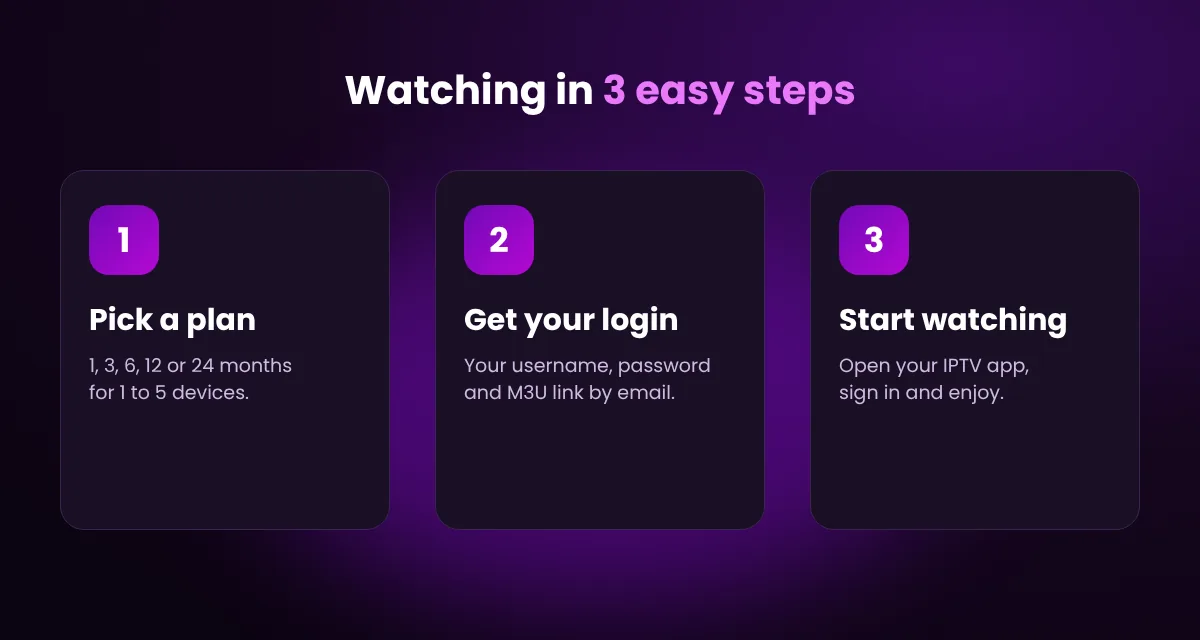
Quick Setup in 4 Steps
Follow these simple steps to get started
Get Your Credentials
After subscribing, you'll receive your login details via email (M3U URL or Xtream Codes)
Download IPTV App
Install the recommended IPTV player app on your device (IPTV Smarters, TiviMate, etc.)
Enter Your Details
Open the app and input your credentials (URL, username, password)
Start Watching
That's it! Browse 20,000+ channels and start streaming instantly
Understanding Your Credentials
You'll receive one of these credential formats
Option 1: Xtream Codes Login
Server URL / Host
Example: http://server.example.com:8080
Username
Your unique username provided in email
Password
Your unique password provided in email
Option 2: M3U Playlist URL
M3U URL
A single link that contains all your channels
Example: http://server.example.com/playlist.m3u
Device-Specific Setup Guides
Detailed instructions for each device type
Amazon FireStick
- Go to Settings > My Fire TV > Developer Options
- Enable "Apps from Unknown Sources"
- Download Downloader app from Amazon Store
- Open Downloader and enter app URL
- Install IPTV Smarters Pro
- Open app and select "Login with Xtream Codes"
- Enter your server URL, username, and password
- Click Add User and start streaming
Android Phone/Tablet
- Open Google Play Store
- Search for "IPTV Smarters Pro"
- Download and install the app
- Open the app and accept permissions
- Select "Login with Xtream Codes API"
- Enter your server URL, username, password
- Click "Add User"
- Enjoy streaming on your Android device
Smart TV (Samsung/LG)
- Open your TV's app store
- Search for "IPTV" or "SS IPTV"
- Download and install the app
- Open the app on your TV
- Select "Add Playlist"
- Choose "Remote Playlist (URL)"
- Enter your M3U URL
- Save and start watching channels
iOS (iPhone/iPad)
- Open Apple App Store
- Search for "IPTV Smarters Pro"
- Download and install the app
- Open app and tap "Login with Xtream Codes"
- Enter server URL, username, and password
- Tap "Add User"
- Wait for channels to load
- Start streaming on your iOS device
Android TV Box
- Go to Google Play Store on your box
- Search and install "TiviMate IPTV Player"
- Open TiviMate and click "Add Playlist"
- Select "Xtream Codes API"
- Enter your server details
- Input username and password
- Click "Next" to load channels
- Configure EPG and enjoy streaming
MAG Box
- Turn on your MAG box
- Press "Setup" on your remote
- Go to System Settings > Servers
- Select "Portals"
- Enter your portal URL
- Save settings and reboot
- Wait for channels to load
- Navigate using your remote control
Troubleshooting Common Issues
Quick fixes for common problems
Channels not loading or buffering?
Check your internet connection speed (minimum 10 Mbps recommended). Try switching to a different server if available. Restart your device and router. Clear app cache in settings.
Login credentials not working?
Double-check for typos in URL, username, and password. Ensure you're using the correct format (http:// not https://). Contact support if credentials are still not working.
App keeps crashing or freezing?
Update the IPTV app to the latest version. Clear app data and cache. Reinstall the app if problem persists. Ensure your device has sufficient storage space.
EPG (TV Guide) not showing?
Enable EPG in app settings. Wait 24 hours for EPG to fully load. Check if your subscription includes EPG access. Manually update EPG from app settings.
Video quality is poor or pixelated?
Switch to a lower quality stream if your internet is slow. Check if you're on WiFi instead of mobile data. Close other apps using bandwidth. Try a different channel to test quality.
Audio and video out of sync?
Adjust audio delay in player settings (usually under Audio/Video sync). Restart the channel or app. Update your IPTV player to the latest version.
Need Help with Setup?
Our support team is available 24/7 to assist you with installation
Complete Guide to IPTV Installation and Setup
Setting up IPTV service has never been easier. With 4K Flix IPTV, you can start streaming 20,000+ live channels on any device in just minutes. This comprehensive setup guide covers everything you need to know about installing, configuring, and troubleshooting your IPTV service across all major platforms and devices.
What You Need to Get Started
Before beginning the IPTV setup process, ensure you have the following requirements:
- Stable Internet Connection: Minimum 10 Mbps for HD streaming, 25 Mbps recommended for 4K quality
- Compatible Device: Smart TV, FireStick, Android device, iOS device, or any supported platform
- IPTV Credentials: Your login details provided after subscription (M3U URL or Xtream Codes)
- IPTV Player App: Download the recommended app for your device type
Choosing the Right IPTV Player App
The IPTV player app you choose can significantly impact your viewing experience. For Android devices and FireStick, we recommend IPTV Smarters Pro or TiviMate for their user-friendly interfaces and advanced features. iOS users should consider GSE Smart IPTV for its clean design and reliable performance. Smart TV users can use built-in apps like SS IPTV or install third-party players via their TV's app store.
Understanding M3U URL vs Xtream Codes
4K Flix IPTV provides two types of credentials formats. An M3U URL is a single web link that contains your entire channel playlist. Simply paste this URL into your IPTV player and all channels load automatically. Xtream Codes login requires three components: server URL, username, and password. This method offers more features including EPG (Electronic Program Guide), VOD access, and better organization of channels. Most modern IPTV apps support both formats, so choose whichever is easier for your setup.
Step-by-Step FireStick Installation
Amazon FireStick is one of the most popular devices for IPTV streaming. To install IPTV on FireStick, start by enabling installation from unknown sources in your device settings. Download the Downloader app from the Amazon App Store, then use it to install your preferred IPTV player. Once installed, open the app and enter your Xtream Codes credentials or M3U URL. The channels will load within seconds, and you can begin streaming immediately.
Android Phone and Tablet Setup
Setting up IPTV on Android devices is straightforward. Simply visit the Google Play Store and download IPTV Smarters Pro or your preferred player app. After installation, open the app and select the login method that matches your credentials type. For Xtream Codes, enter your server URL (including port number), username, and password. For M3U playlist, select the URL option and paste your playlist link. The app will automatically load all available channels and organize them by category.
Smart TV Installation Guide
Smart TVs from Samsung, LG, and Sony have built-in app stores where you can download IPTV players. For Samsung TVs, search for SS IPTV or Smart IPTV in the Samsung App Store. LG TV users can find compatible apps in the LG Content Store. Once downloaded, open the app and add your playlist using either the M3U URL method or by entering your Xtream Codes server details. Some Smart TVs may require you to register the app or accept terms before loading channels.
iOS Setup for iPhone and iPad
Apple iOS users can access IPTV through apps available in the App Store. GSE Smart IPTV and IPTV Smarters Pro are both excellent choices for iOS devices. Download your chosen app, open it, and add your playlist. iOS apps typically have intuitive interfaces that make channel navigation easy. You can create favorites, set parental controls, and customize the viewing experience to your preferences.
MAG Box Configuration
MAG boxes are dedicated IPTV devices that offer a traditional TV-like experience. To configure your MAG box, access the system settings using your remote control. Navigate to the Servers section and enter your portal URL provided by 4K Flix IPTV. Save the settings and restart your device. After reboot, the channels will load automatically. MAG boxes are particularly popular for their stability and ease of use with minimal setup required.
Optimizing Your IPTV Experience
For the best streaming quality, ensure your device is connected to your router via Ethernet cable when possible. WiFi connections should use the 5GHz band for reduced interference. Close unnecessary apps running in the background to free up bandwidth. If you experience buffering, try switching to a lower quality stream or contact your internet service provider to ensure you're getting the speeds you're paying for.
EPG (Electronic Program Guide) Setup
The EPG shows you what's currently playing and upcoming programs for each channel. Most IPTV apps with Xtream Codes login will automatically load the EPG. If your EPG isn't displaying, check your app settings to ensure EPG is enabled. Allow 24 hours for the EPG to fully populate with program information. You can manually refresh the EPG in your app settings if needed.
Parental Controls and Content Filtering
Most IPTV player apps include parental control features. You can set up a PIN code to restrict access to adult content or specific channel categories. This is particularly important if children will be using the service. Configure these settings in your IPTV app's preferences menu before allowing family members to access the channels.
Multi-Device Streaming
4K Flix IPTV subscriptions support multiple simultaneous streams, allowing you to watch different channels on different devices at the same time. Simply install the IPTV app on each device you want to use and log in with the same credentials. Each device will have independent access to the full channel lineup.
Troubleshooting Connection Issues
If you're unable to connect or channels won't load, first verify your credentials are entered correctly. Check that your internet connection is active and stable. Restart your router and device. If using a VPN, try disconnecting it temporarily as some VPNs can interfere with IPTV streaming. Contact our 24/7 support team if problems persist.
Updating Your IPTV App
Keep your IPTV player app updated to the latest version for optimal performance and access to new features. Most apps will notify you when updates are available. Regular updates fix bugs, improve stability, and often add new functionality. Check your device's app store periodically for updates to your IPTV player.
Recording and Time-Shift Features
Many IPTV apps support recording live TV or catching up on programs you missed. If your IPTV player has these features, you can set recordings for your favorite shows or pause and rewind live TV. Check your specific app's documentation for instructions on enabling and using these advanced features.
Getting Additional Support
If you encounter any issues during setup or need personalized assistance, our support team is available 24/7 via WhatsApp, email, and live chat. We can provide remote assistance, send detailed setup videos, or troubleshoot specific problems with your device. Don't hesitate to reach out - we're here to ensure you have the best possible IPTV experience.
Start Your IPTV Journey Today
With this comprehensive setup guide, you have everything needed to install and configure 4K Flix IPTV on any device. Whether you're using a FireStick, Smart TV, phone, or any other supported device, the setup process takes just minutes. Try our free 24-hour trial to test the service risk-free, or view our subscription plans to get started with full access to 20,000+ channels today.