
IPTV Troubleshooting: Fix Common Problems
Most IPTV issues take less than five minutes to fix. Start with the quick fixes, then find your problem below.
- Buffering fixes
- Login & EPG help
- Device-specific tips
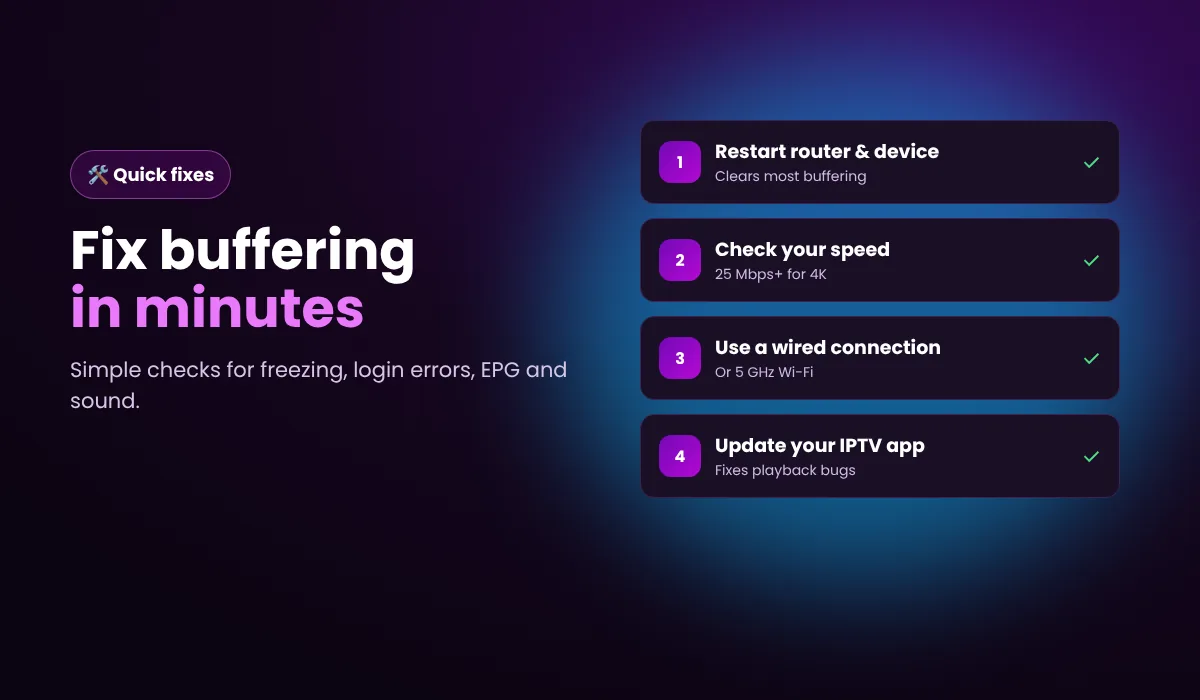
Quick fixes that solve most problems
Restart everything
Turn off your router and device for 30 seconds.
Check your speed
10 Mbps for HD, 25 Mbps for 4K per screen.
Go wired
Use Ethernet or 5 GHz Wi-Fi instead of 2.4 GHz.
Update the app
Install the latest version of your IPTV player.
Find your problem
1. Buffering and freezing
Restart your router and device. Use a wired connection or 5 GHz Wi-Fi. Make sure you have at least 10 Mbps (HD) or 25 Mbps (4K) per screen. In TiviMate or Smarters, switch the player to a different decoder (hardware/software) and lower the buffer size if it keeps freezing. Close other streaming apps on the same network.
2. Login or authentication errors
Copy the server URL, username and password exactly as sent, with no extra spaces. Check that your plan or trial is still active in your dashboard. If you see “max connections reached”, another device is already using your line: close it or upgrade to more connections.
3. Channels not loading
Refresh the playlist in your app. If one channel fails, try its FHD or HD version. If none load, restart the app and check your internet connection. Some networks block streaming ports, so try another network or a VPN.
4. TV guide (EPG) not showing
In your app's settings, update or reload the EPG. Set the EPG time shift to your time zone. It can take a few minutes after first login.
Still empty? Try the fixes in IPTV SUBC's guide to an empty or wrong IPTV guide.
5. App crashes or won't open
Clear the app cache, update to the latest version or reinstall it. On Firestick, free up storage by removing unused apps.
6. Poor picture quality
Choose the HD or 4K version of a channel, check your speed and avoid Wi-Fi extenders where possible.
7. No sound or audio out of sync
Change the audio track in the player, switch the player decoder, or restart the channel. Disable audio passthrough on your device if sound is missing.
Still stuck?
Email [email protected] or message us on WhatsApp with your device, app and a short description. Customers on 12 and 24-month plans can message their account manager directly.
Setting up a new device? See our IPTV setup guides.
Understanding why IPTV buffers
IPTV streams video over your internet connection in real time. Buffering happens when the data cannot arrive fast enough. Knowing the cause helps you fix it for good.
1. Internet speed and stability
A 4K stream needs about 25 Mbps and an HD stream about 10 Mbps. If several people stream or download at the same time, each stream gets less. Run a speed test on the device you watch on, not on your phone.
2. Wi-Fi interference
Walls, microwaves and neighbours' networks slow down 2.4 GHz Wi-Fi. Switch to 5 GHz, move the router closer or use an Ethernet cable. A Firestick Ethernet adapter costs little and fixes most buffering.
3. Internet provider throttling
Some providers slow down streaming traffic at peak times. If buffering only happens in the evening, a VPN can help.
4. The device and app
Older devices struggle with 4K. Clear the app cache, close background apps and keep your player updated. In TiviMate and IPTV Smarters you can change the video decoder in settings, which fixes freezing on some devices.
5. Connection limits
Each plan allows a set number of simultaneous streams. Watching on more devices than your plan allows causes errors. Upgrade on the 5 connections page.
Troubleshooting: frequently asked questions
Why does my IPTV keep buffering?
Buffering is usually caused by slow or unstable internet, Wi-Fi interference or an outdated app. Restart your router, use a wired connection and update your IPTV player.
What internet speed do I need for IPTV?
At least 10 Mbps for HD and 25 Mbps for 4K, per screen.
What does “max connections reached” mean?
Your line is already in use on another device. Close it there, or add more connections.
Why is my TV guide empty?
Reload the EPG in your app's settings and wait a few minutes after first login.
Does a VPN help with IPTV?
If your internet provider slows down streaming, a VPN can help. It is optional.
Back to watching in minutes
Try everything free for 24 hours. No payment details, no contract.